
Booking Process in eZee FrontDesk
Booking Guest – A guest who has confirmed their stay, usually with payment or a deposit, ensuring their room is secured.
Booking in eZee FrontDesk refers to securing a room or service in advance for a guest. Below are the steps to make a booking in eZee FrontDesk:
Steps to Make a Booking:
- Access the Booking Module
- Click on the Navigation Button.
- Select Front Office.
- Click on New Booking.

- Initiate a New Booking
- Click on New Booking.
- Select the Arrival Date and Departure Date.
- Enter the number of Adults, Children, and Infants.
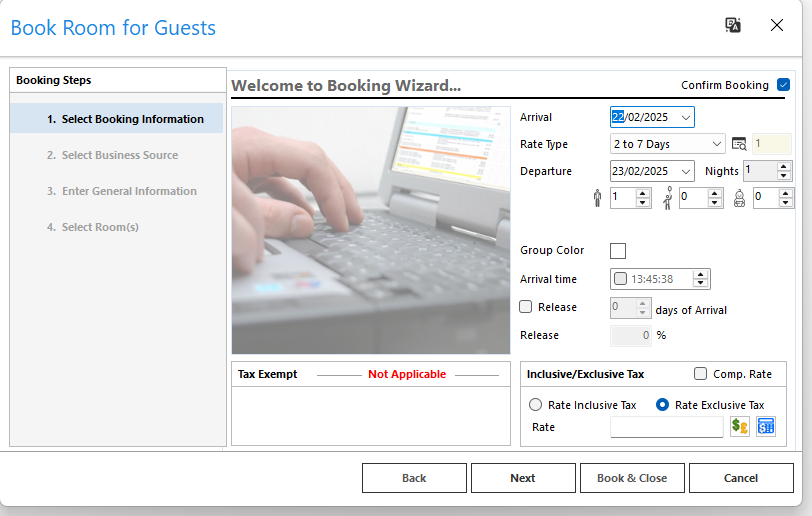
- Choose the Room Type

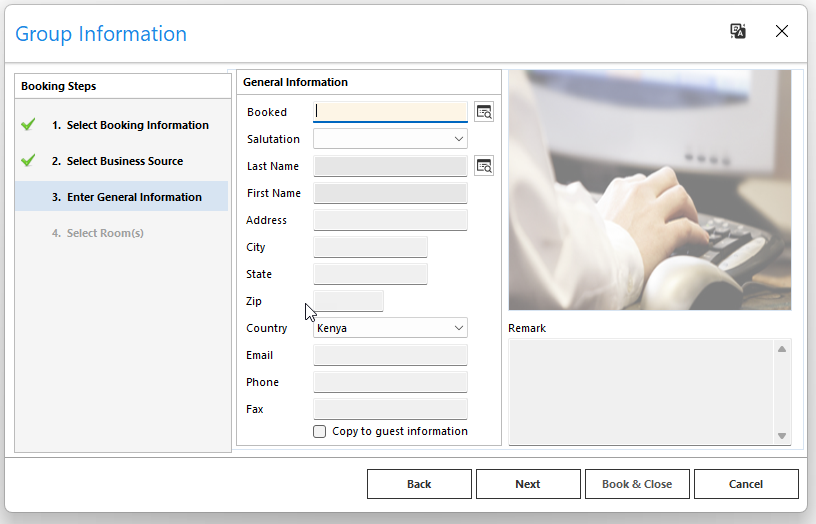
- Enter Booking Details
- Input the guest’s personal details such as Name, Contact Information, and Nationality.
- If the guest has previously stayed, retrieve details from the Guest Profile.


- Select Room Type
- Select Room Type based on the number of guests.
- Note the Booking No. and click Ok.
- If an advance payment is received, enter the details under Payment Information.

- Confirm the Booking
- Review all entered details.
- Click on Confirm Booking.
- A Booking Confirmation Number will be generated for reference.

Viewing & Modifying a Booking:
- To view or edit a booking, navigate to the Booking List.

- Search using the Guest Name or Booking Number.

- Click on the booking to edit details if necessary.
