
How to Check-In a Guest from a Reservation in eZee FrontDesk
Introduction
This guide explains the different ways to check in a guest from a reservation in eZee FrontDesk. The process can be completed using the Universal Search, List View, or Stay View.
Methods to Check-In a Guest
Method 1: Using the Universal Search
- Open Universal Search.
- Select the Reservation Field.
- Enter the Guest's Name or Reservation Number.

- Click Search.
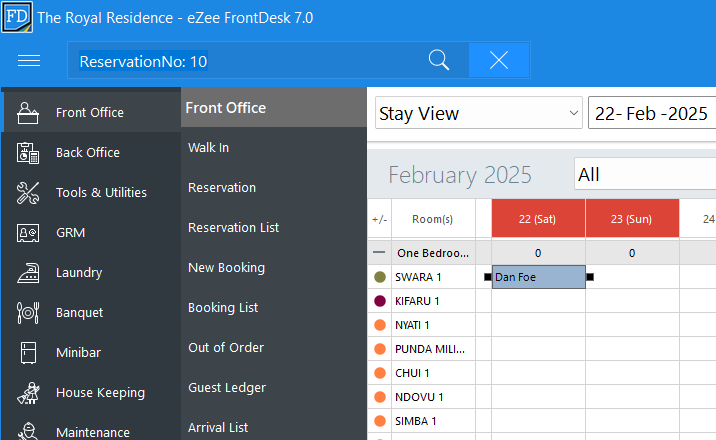
- Locate the Reservation, right-click on it, and select Open Transaction.

- Click Check-In to complete the process.


Method 2: Using the List View
- Click on the Reserved tab to view all the arrivals for the day.

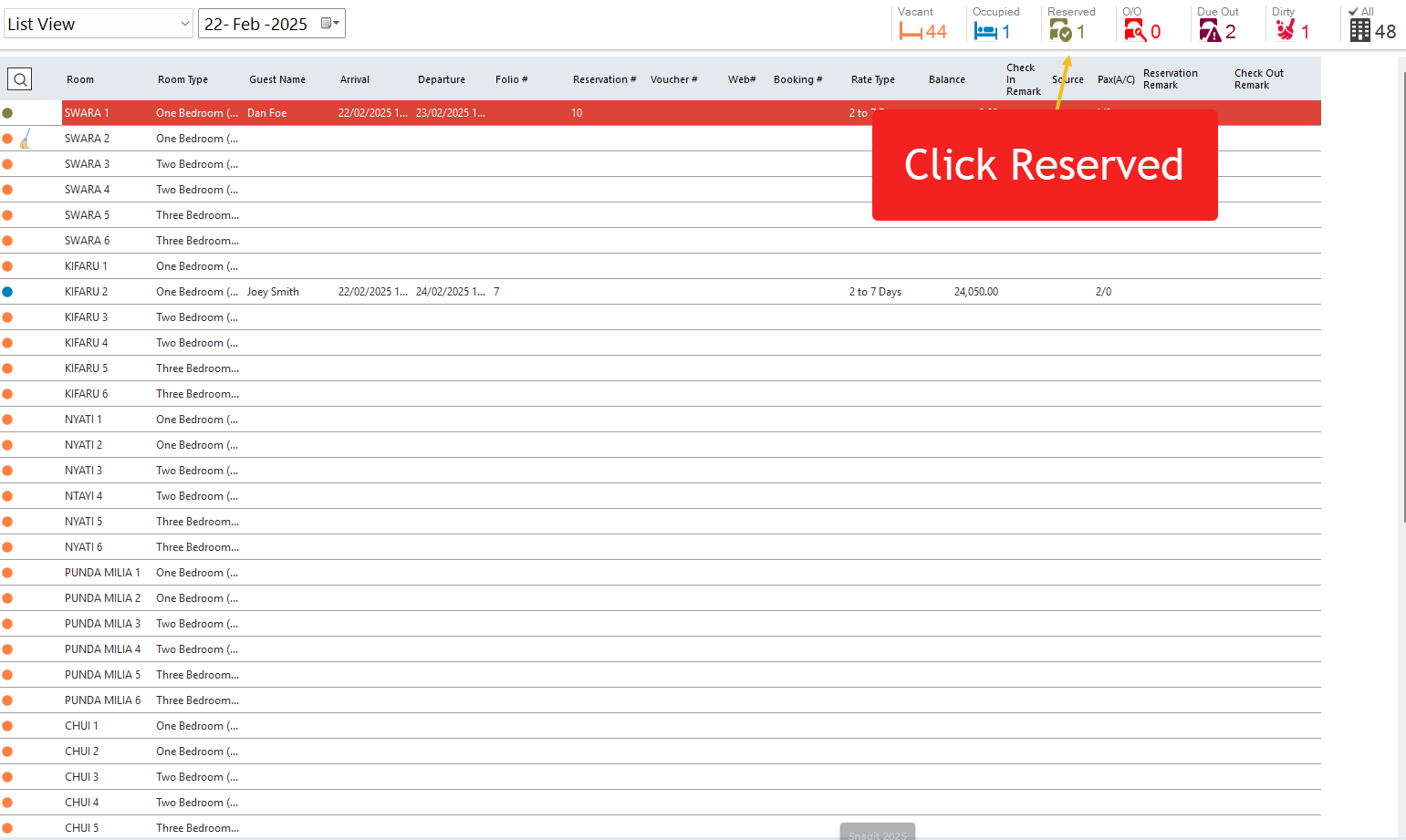
- Locate the guest’s reservation.
- Right-click on the reservation and select Open Room Check-In.
Method 3: Using the Stay View
- Navigate to Stay View.
- Select the Arrival Date of the guest.
- Find the reservation and double-click to open it.
- Modify any required details using the available options.
- Click Update to save any changes.
- Click Check-In to finalize the process.

Watch the video below on how to Check In.